 Chordleaf
User guide
Chordleaf user guide: from the first song to the PDF
This guide walks through the whole journey: create or import a song, place the chords, adjust the music and the page format, export the sheet and solve the most common problems.
First steps
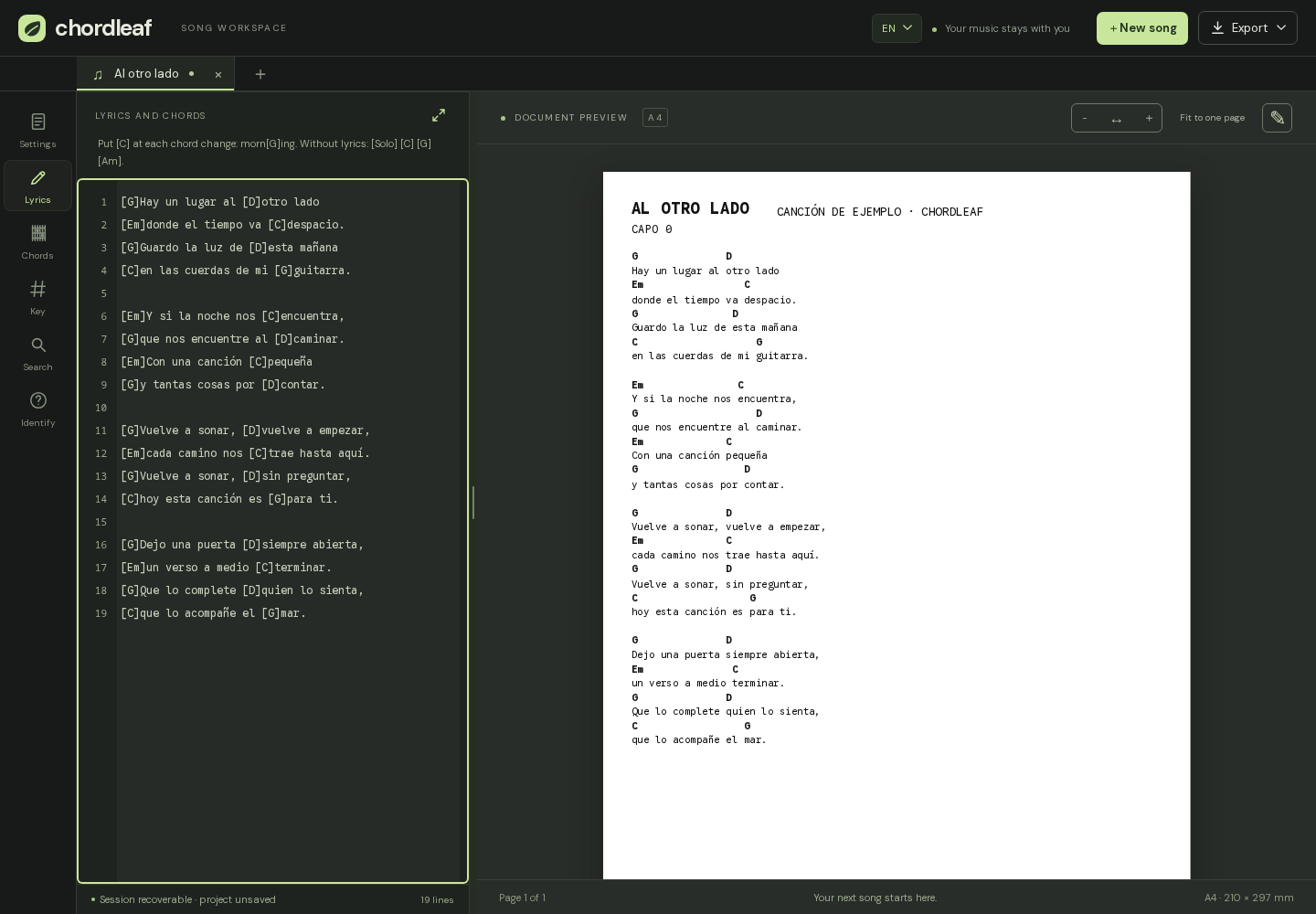
Open Chordleaf in your browser. The first time you will see an empty workspace with the option to create a song; later you can return through the new song button or the tabs at the top.
- Type the lyrics directly or paste a text.
- Or import TXT, PDF, DOCX, ChordPro or a supported link.
- Set the title and artist so they appear in the sheet header.
Lyrics and chords
Pick a chord from the panel and place it where the harmony changes. The editor anchors each chord to a syllable, so you can edit the lyrics without rebuilding the alignment.
Chords the editor does not recognise are flagged for review. You can also draw your own shapes on the interactive fretboard and keep them for other songs.
Music: key, capo and transposition
The likely key is estimated from the written chords. Transposition moves the song by semitones and the capo adapts the shapes you play; the key note tells you what actually sounds with the capo on.
Neither transposition nor the capo changes the lyrics. The undo button restores the original key whenever you need it.
The document and its format
The document settings control font size (7–20 pt), margins (5–35 mm) and one or two columns. Each song keeps its own format, and the preview shows the same A4 page that gets exported.
Diagram blocks move across the page as objects and the text flows around them. The chordleaf.com footer is optional and can be switched off under More options.
Export and share
The export menu gathers every output format. Pick the one that matches what you will do with the sheet.
- PDF: the most faithful option for printing or sharing.
- Print: the browser dialog with the A4 layout and no interface.
- Word (DOCX): to tweak the document in a word processor.
- Text and ChordPro (.cho): for other editors and applications.
- Project .chordleaf.json: to keep editing in Chordleaf.
Saving and backups
Chordleaf stores each song in the browser's local storage. There is no account and no sync, so export the project whenever the song matters.
Installed as an app, the editor opens offline after the first visit. Clearing the browser data removes the local songs, and without an exported copy there is no way to recover them.
Common problems
Almost every issue has a known way out. These are the usual ones.
- A link import fails or returns 403/429: paste the text; the site is blocking server traffic.
- A chord appears flagged: replace it from the panel or check its spelling.
- The song splits across two pages: reduce the font, adjust the margins or use two columns.
- You lost your songs: check that you are in the same browser and origin; without an exported copy they cannot be recovered.
- The PDF will not generate: check that no diagram block covers the header or the footer.
Short glossary
Four terms that show up often in chord sheets and in the interface.
- Transpose: change the key of a song while keeping the melody and lyrics.
- Capo: a clamp that raises the sounding pitch without changing the shapes you play.
- ChordPro: a text format with chords written in square brackets.
- A4: the standard 210 × 297 mm paper size used by the sheet.
Frequently asked questions
Where do I start?
Create a blank song, write or paste the lyrics and place the first chords. If you already have a text with chords, import it and review anything flagged.
How do I fit a song on one page?
Adjust the font size and margins, or switch to two columns. The editor shows where the page breaks land so you can move them before printing.
Can I keep editing after exporting?
Yes. The PDF and Word files are outputs; save the .chordleaf.json project and reopen it with the lyrics, chords and format intact.
Where are my songs if I change device?
They are not synchronised. Export the project on one device and import it on the other to move the song.